How to Monitor WhatsApp Messages: 5 Practical Ways
Learn how to monitor WhatsApp messages, compare different monitoring methods, and review chats, contacts, groups, media, and recent activity more efficiently.
How to See Who Someone Is Talking to on WhatsApp
Wondering who someone is talking to on WhatsApp?
If you have authorized access to the WhatsApp account, the most useful information is usually spread across more than one place: messages, contacts, groups, shared media, voice notes, files, calls, and recent activity.
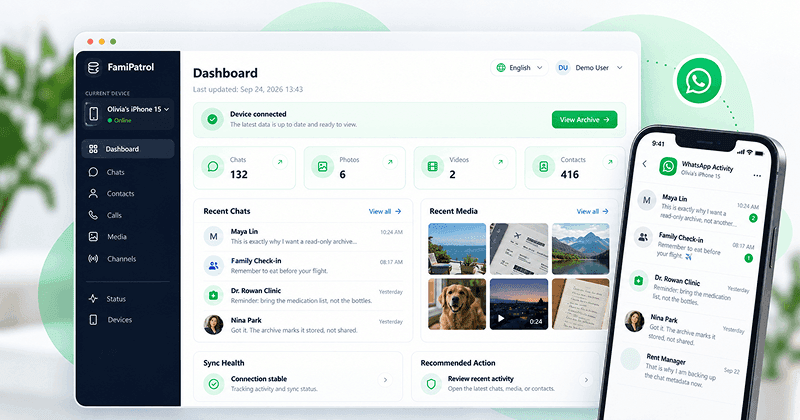
FamiPatrol is designed to bring supported WhatsApp activity together in one browser-based dashboard, so you can review conversations, identify contacts, check group activity, browse shared content, and return later to see newer synchronized activity.
Monitor WhatsApp Activity with FamiPatrol
FamiPatrol is built for ongoing WhatsApp monitoring rather than a one-time look at a single conversation.
Once a supported WhatsApp account is connected, synchronized information is organized into dedicated dashboard sections. This makes it easier to understand the account’s activity as a whole instead of looking at messages in isolation.
You can use FamiPatrol to answer questions such as:
- Who has the account been talking to recently?
- Which conversations are active?
- Are there unfamiliar or newly relevant contacts?
- Which WhatsApp groups are active?
- What photos, videos, voice notes, or files have been shared?
- Are there recent WhatsApp calls?
- What new activity has appeared since the last review?
What WhatsApp Information Can You See in FamiPatrol?
WhatsApp Messages and Conversations
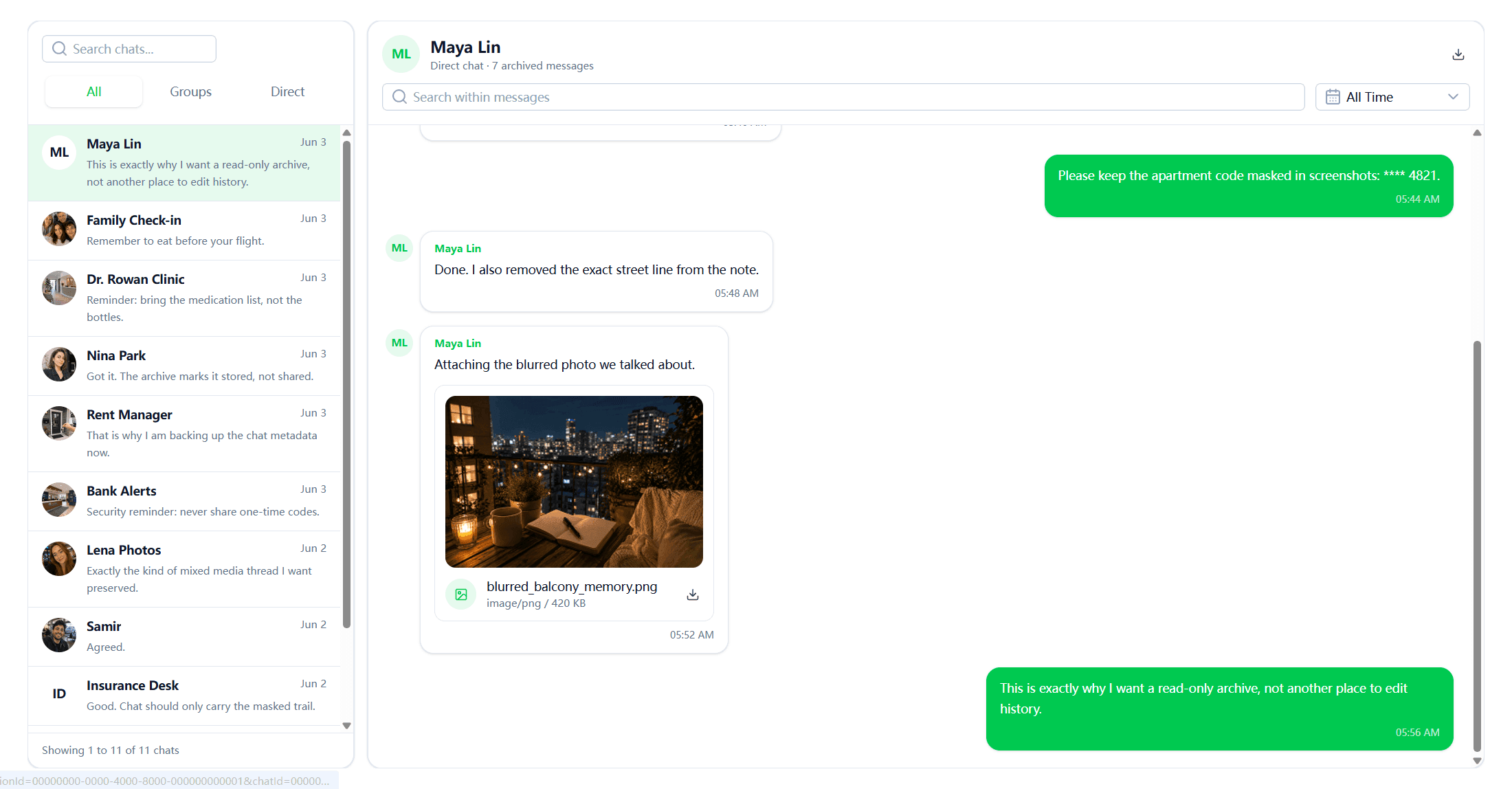
The Chats section lets you review supported one-to-one and group conversations from the synchronized WhatsApp account.
This is the main place to see recent messages, identify active conversations, and understand which contacts or groups the account has been communicating with.
Contacts and Phone Numbers
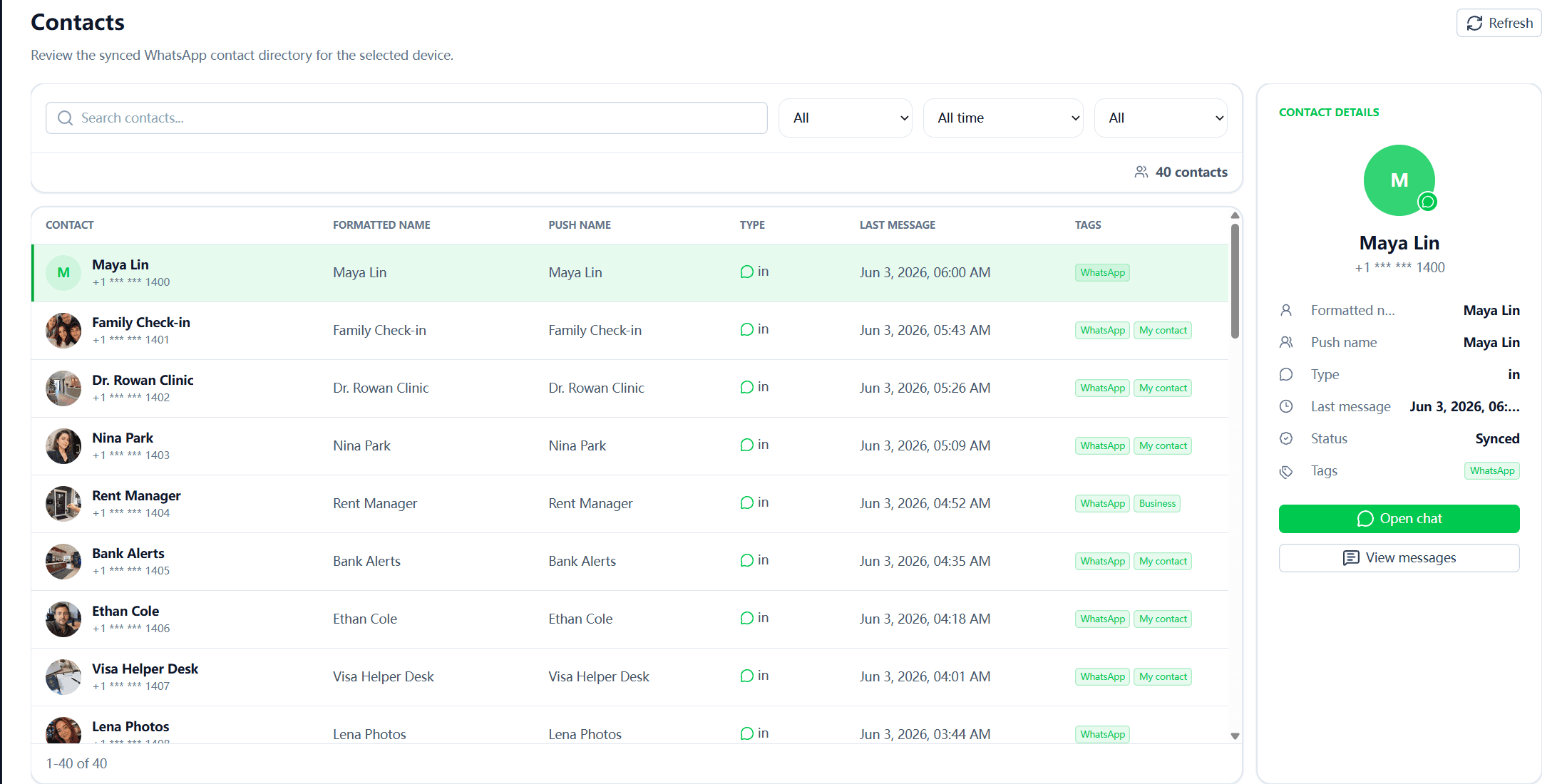
FamiPatrol organizes supported WhatsApp contact information into a dedicated Contacts section.
Where available, you can review names and phone numbers associated with synchronized conversations. This can help you identify unfamiliar contacts or understand who a conversation belongs to.
WhatsApp Groups
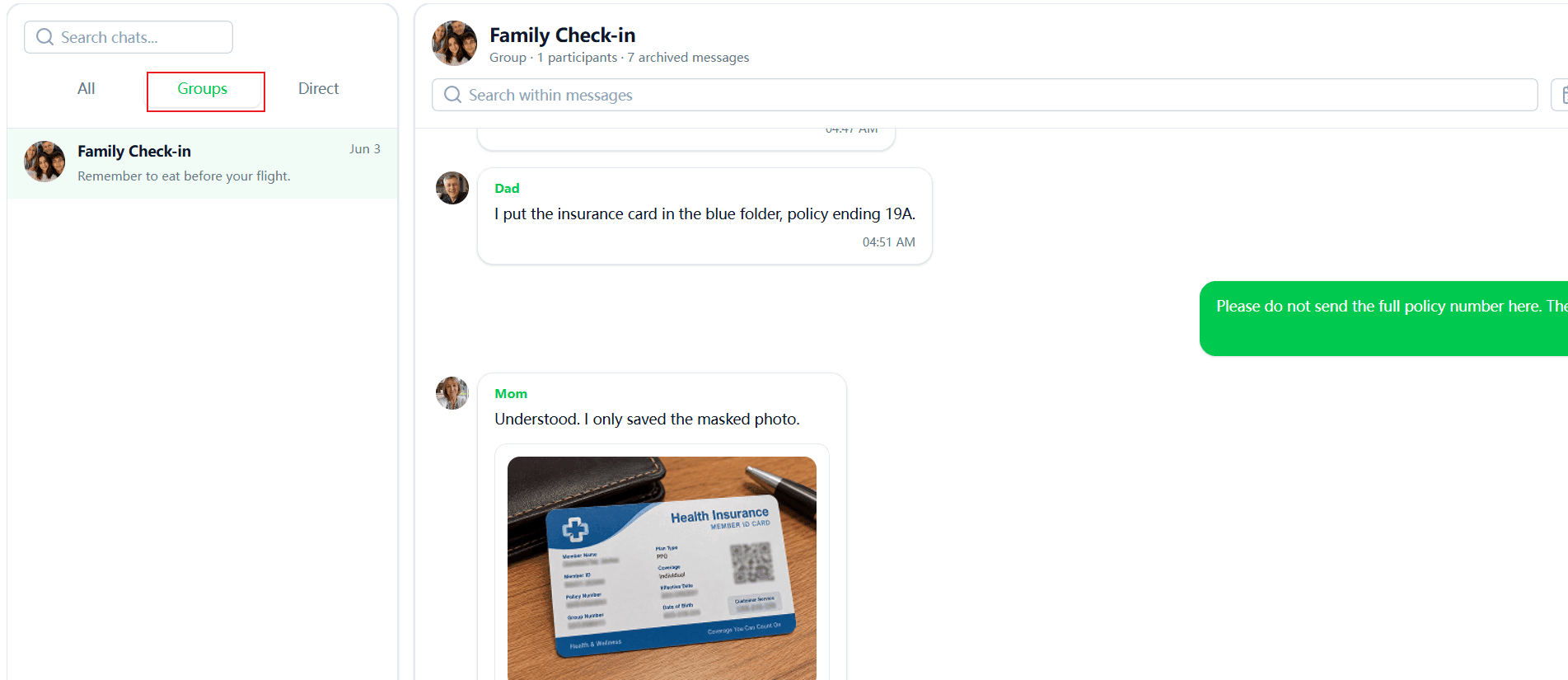
Group activity can be reviewed separately from individual conversations.
This is useful when the monitored account participates in multiple family, school, social, or community groups and you want to understand which groups are active and what conversations are taking place there.
Photos and Videos
WhatsApp conversations often contain important context outside plain text.
FamiPatrol can organize supported photos and videos from synchronized WhatsApp activity, making it easier to review shared media alongside the conversations it belongs to.
Voice Notes
Voice messages are a common part of WhatsApp communication.
Where supported data is available, FamiPatrol lets you review synchronized voice notes so you are not limited to text messages alone.
Shared Files and Documents
Documents and other shared files can also be part of a conversation.
FamiPatrol organizes supported synchronized files so they can be reviewed without relying only on the chat timeline.
Recent Activity
Recent activity helps you focus on newer synchronized WhatsApp information.
If you have already reviewed the account before, this makes it easier to come back later and see what has changed instead of starting from the oldest activity again.
Supported WhatsApp Call Information
Where supported call data is available, FamiPatrol can also help you review recent WhatsApp call information.
Looking at calls together with chats and contacts can provide a broader view of communication activity.
How to Monitor WhatsApp with FamiPatrol
Step 1: Open Your FamiPatrol Dashboard
Sign in to FamiPatrol and open the WhatsApp monitoring section.
If the WhatsApp account has not been connected yet, begin with the supported connection process.
Step 2: Connect the WhatsApp Account
Follow the supported authorization flow to establish the WhatsApp connection.
The account and device should be ones you are authorized to access.
After the connection is established, supported WhatsApp information can begin synchronizing to the FamiPatrol dashboard.
Step 3: Review Messages and Chats
Open the Chats section to review synchronized individual and group conversations.
Recent conversations can help you quickly identify which contacts and groups have been active.
Step 4: Check Contacts and Groups
Open Contacts when you want to identify the people associated with available conversations.
You can also review Groups separately to understand group activity without mixing it with one-to-one chats.
Step 5: Review Media, Voice Notes, and Files
Use the relevant dashboard sections to review synchronized photos, videos, voice notes, documents, and other shared files.
This gives you a more complete picture of WhatsApp activity than message text alone.
Step 6: Check Recent Activity and Calls
Use recent activity to focus on newer synchronized information.
Where supported, you can also review WhatsApp call information for additional communication context.
Step 7: Return Later for Newer Synchronized Activity
FamiPatrol is designed for repeated review.
While the supported WhatsApp connection remains active and the relevant data is available, newer supported activity can continue synchronizing to the dashboard.
That means you can return later and review new messages and activity from the same monitoring interface.
Why Ongoing WhatsApp Monitoring Is Different from a One-Time Check
A single WhatsApp conversation only shows one part of the account’s activity.
Ongoing monitoring is more useful when you need to review several types of information together, such as:
- conversations,
- contacts,
- groups,
- photos and videos,
- voice notes,
- files,
- calls,
- and recent activity.
FamiPatrol organizes these supported records into separate dashboard sections while keeping them connected to the same WhatsApp monitoring workflow.
Follow New Activity Over Time
One of the most important parts of ongoing monitoring is being able to return later.
If the supported WhatsApp connection remains active, newer supported activity can continue synchronizing.
This allows you to compare what you saw previously with what has appeared since then.
Review More Than Message Text
Messages are only one part of WhatsApp activity.
A conversation may include photos, videos, voice notes, documents, and calls that provide additional context.
Reviewing those data types together can give you a more complete understanding of the communication taking place.
Keep Different Types of WhatsApp Data Organized
When an account has many chats and groups, it can be difficult to understand activity from the chat list alone.
Dedicated views for chats, contacts, groups, media, files, calls, and recent activity help keep the monitoring process organized.
What Should You Check to Understand Who Someone Is Talking To?
If your goal is to understand who an authorized WhatsApp account is communicating with, looking at several types of activity together can provide more context.
Recent Chats
Recent conversations show which individual contacts and groups have had newer activity.
They are usually the best starting point when you want to understand current communication.
Contacts
Contact information helps connect a conversation to a person or phone number.
If an unfamiliar contact appears in recent chats, the Contacts section can provide additional available information.
Group Conversations
Not all WhatsApp activity is one-to-one.
Reviewing groups separately helps distinguish personal conversations from group activity.
Calls
Available call information can reveal communication that may not be obvious from message volume alone.
A contact may appear in recent WhatsApp calls even if the text conversation itself is short.
Photos, Videos, and Voice Notes
Some conversations rely heavily on media or voice messages rather than text.
Reviewing those content types can provide additional context about the interaction.
New Activity Over Time
A single review only shows what was available at that moment.
For ongoing monitoring, newer synchronized activity is especially useful because it lets you see how communication changes over time.
Can Online Status Tell You Who Someone Is Talking To?
No.
WhatsApp’s online status does not identify which conversation a person is viewing or who they are communicating with.
If you need to understand actual account activity, recent chats, contacts, groups, available calls, and synchronized messages provide much more useful information.
Can You See WhatsApp Messages with Just a Phone Number?
No.
A phone number by itself does not provide access to private WhatsApp conversations.
The relevant WhatsApp account must first be connected through the supported authorization process before FamiPatrol can synchronize supported account activity.
Be cautious with services claiming they can reveal private WhatsApp messages using only a phone number.
What About WhatsApp Linked Devices?
WhatsApp’s Linked Devices feature is its built-in way to use the same WhatsApp account on supported additional devices.
It can be useful when the goal is simply to access WhatsApp from another device.
FamiPatrol serves a different purpose: it is built around monitoring and organizing supported WhatsApp activity across dedicated dashboard sections such as chats, contacts, groups, media, files, calls, and recent activity.
Frequently Asked Questions
What WhatsApp information can FamiPatrol monitor?
Depending on the supported connection and available synchronized data, FamiPatrol can organize WhatsApp messages, individual and group chats, contacts, photos, videos, voice notes, shared files, recent activity, and supported call information.
Can FamiPatrol show WhatsApp messages?
Yes. Supported synchronized individual and group conversations can be reviewed from the Chats section of the FamiPatrol dashboard.
Can FamiPatrol show WhatsApp contacts?
Yes. Supported synchronized contact information can appear in a dedicated Contacts section, including available names and phone numbers.
Can FamiPatrol show WhatsApp groups?
Yes. Supported WhatsApp groups and group conversations can be reviewed separately from individual chats.
Can FamiPatrol show photos and videos from WhatsApp?
Yes. FamiPatrol can organize supported synchronized photos and videos from WhatsApp activity where those records are available.
Can FamiPatrol show WhatsApp voice notes?
Where supported voice-note data is available, FamiPatrol can organize synchronized voice messages alongside other WhatsApp activity.
Can FamiPatrol show WhatsApp calls?
Where supported call information is available, WhatsApp call activity can be reviewed as part of the monitoring dashboard.
Can FamiPatrol show newer WhatsApp activity later?
Yes. While the supported WhatsApp connection remains active and the relevant data is available, newer supported activity can continue synchronizing to the dashboard.
Can a phone number alone show someone’s WhatsApp messages?
No. A phone number alone cannot reveal private WhatsApp conversations. The WhatsApp account must be connected through the supported authorization process.
Does WhatsApp online status show who someone is talking to?
No. Online status does not identify which chat a person is viewing or who they are communicating with.
Final Thoughts
If your goal is to monitor WhatsApp activity, the useful information goes beyond a single chat.
Messages, contacts, groups, media, voice notes, files, calls, and recent activity can all provide different parts of the picture.
FamiPatrol brings these supported WhatsApp records together in one browser-based dashboard and can continue synchronizing newer supported activity while the connection remains active.
That makes it possible to review WhatsApp activity over time from one organized monitoring interface.
Use monitoring features only for accounts and devices you are authorized to access and in accordance with applicable laws and platform requirements.
Further reading

By myra